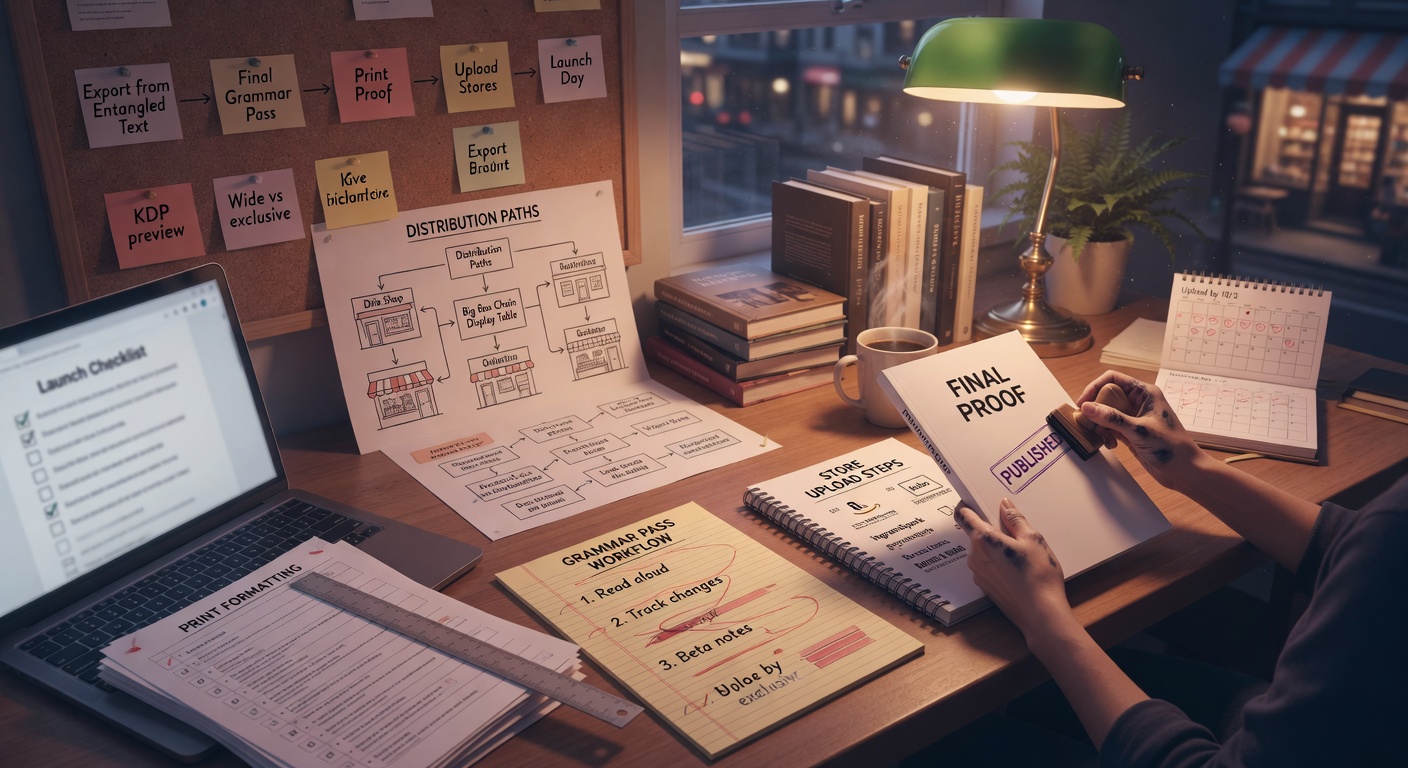
You finished the manuscript in Entangled Text—now what? This guide covers marketing before launch, uploading to each store, print formatting, and a grammar & style pass. Entangled Text exports your files; you upload and publish on each platform’s site.
Related: KDP upload checklist for AI-assisted drafts · Manuscript cleanup tool · Blurb builder
Part 1 — Launch checklist
Work through these before and after you hit publish. They live in your listing details, exports, and outreach—not inside the app.
Back-cover / store blurb
Write 80+ characters in your Ship listing: hook, protagonist, conflict, stakes, tone. Avoid “In a world where…” openings. Stress-test length with the blurb builder for Amazon mobile.
Keywords & categories
Add 1–7 discoverability tags in listing details. Mirror Amazon browse categories you will pick at upload. Tags and blurb should describe the same book—not keyword stuffing.
Amazon ad copy (optional)
Draft a short headline + body for Sponsored Products. Test three variants after you have a live ASIN. Keep claims accurate; no fake reviews or misleading tropes.
Launch email / newsletter
One email to your list: cover, one-line hook, single CTA (buy or read sample). Send on launch day or the morning of your preorder go-live.
Social posts (3–5)
Plan: quote hook, cover reveal, countdown, launch day, and one “why I wrote this” post. Reuse the blurb language so messaging stays consistent.
BookBub & promo sites (optional)
Apply before launch if you have reviews or a series. Many sites want a live or preorder link plus a professional cover and clean blurb.
Beta round complete
Resolve notes from beta readers in Edit → Beta reader notes before you treat the file as final. If three readers stall in the same chapter, fix structure there first.
Pricing & territories
Decide launch price, Kindle Unlimited enrollment, and wide vs. Amazon-exclusive before upload. You can change price later; exclusivity windows are harder to undo.
Part 2 — Publishing platforms
Export from Ship (EPUB for most stores, PDF for print interiors, Markdown for serial sites). Then follow each platform’s upload flow.
Amazon KDP (Kindle)
Export: KDP preset · EPUB or KDP bundle (.zip).
- Run ship preflight and download EPUB or the KDP bundle from Ship.
- Upload manuscript at kdp.amazon.com; use your cover URL from listing details.
- Paste blurb and tags from listing details.
- Set price and territories; publish or set a preorder date.
Kobo Writing Life
Export: Validated EPUB (same as KDP) or DOCX.
- Export EPUB after preflight passes.
- Create title at Kobo Writing Life; upload EPUB and cover.
- Match metadata to your listing blurb.
Apple Books
Export: EPUB · run preflight for clean chapter headings.
- Use EPUB from Ship with consistent headings.
- Upload through an aggregator (Draft2Digital, Kobo) or Apple Books for Authors.
- Verify ISBN requirements for your region if applicable.
Google Play Books
Export: EPUB preferred.
- Export EPUB from Ship.
- Upload in the Play Books partner center.
- Set description and sample percentage.
Draft2Digital (wide distribution)
Export: EPUB or DOCX.
- Upload EPUB at Draft2Digital; map series name if applicable.
- Enable store channels you want (Apple, B&N, Kobo, libraries).
- Use the universal book link after publish for marketing.
IngramSpark (print)
Export: PDF from Ship, then refine trim size and margins in a print tool.
- Export PDF as a starting manuscript.
- Format trim size & margins in Atticus, Vellum, or Reedsy (see Part 3).
- Upload interior PDF + wraparound cover at IngramSpark.
Royal Road (serial)
Export: Royal Road preset · Markdown per chapter.
- Export with the Royal Road preset from Ship.
- Paste chapters into the fiction portal or use the site editor.
- Enable Patreon or advanced chapters if desired.
Audiobook (ACX / Findaway)
Export: Narration script from Ship.
- Download the narration script export.
- Mark chapter breaks for your narrator or recording sessions.
- Distribute finished audio via ACX or wide audio partners.
Part 3 — Print formatting partners
Ship’s PDF or DOCX is a starting point—not a print-ready file. Hand off to a formatter for trim size, margins, headers, and page numbers.
- Atticus — All-in-one ebook + print; import DOCX from Ship.
- Vellum — Mac-only; polished ebooks and print; import Word from Ship.
- Reedsy Studio — Free web formatter; export EPUB for stores.
Estimate paperback page count with the KDP page estimator before pricing print.
Part 4 — Grammar & style pass
Run this after structural revision and beta feedback, before final export for upload.
Step 1: Export DOCX from Ship
- Download Word from Ship after your edit pass.
- Keep chapter headings intact for re-import if needed.
Step 2: ProWritingAid or Grammarly
- Open DOCX in ProWritingAid Desktop or paste chapters into Grammarly.
- Run style + grammar; accept changes in the external tool.
- Save a reviewed copy—do not replace your only draft without a backup.
Step 3: Bring edits back (optional)
- Use Edit book import for large replacements, or paste chapter-by-chapter in Edit.
- Run story health in Edit to catch leftover issues.
Start with the manuscript cleanup tool for filter words, heading drift, and homophone flags before you pay for a human proofread.
Quick reference
- Inside Entangled Text: Listing details → Export → Beta readers (Ship tab).
- Outside Entangled Text: Store uploads, print layout, ads, and newsletter—this guide.
- After launch: Watch early reviews for “AI smell” (flat dialogue, repetitive beats); KDP allows updated files.
Questions about exports or listing fields? See documentation or contact us with your project URL.